Last updated: 15 May 2026
This is my kid’s school week. SATs. Mud run sponsorship money due Friday. PE Tuesday. No Crocs. Miss any of these and someone’s going to school in the wrong shoes, or worse, with no kit at all.
I built a working version of the week, themed for a seven-year-old, in ChatGPT Image Generation 2, in about four minutes.
Then I tried something harder, and the tool lied to me about the dates.
Key takeaways
ChatGPT’s Image Generation 2 tool reliably handles morning checklists and personalised engagement graphics in under five minutes. It fails badly on data-grounded outputs like a calendar, where it hallucinates dates and events, and it can pull context from earlier chat sessions you’d forgotten about. The working rule: trust the visual, verify the data.
Below: three use cases I tested this week, the prompts I used, and the one moment the tool burned me after I’d hit publish on the video.
Why most parent AI advice misses the point on image generation
The mornings in our house are a fight. Three kids, three different attention spans, and a checklist on the fridge that nobody reads because it’s a list of words in size 10 Calibri.
The usual parent advice is to make it visual. Print a chart. Use Canva. Buy a magnetic board off Etsy.
The problem isn’t the idea. It’s the cost of personalisation. Canva eats an hour and you still end up with something generic. The magnetic board arrives looking like every other magnetic board. And the moment your kid wants Formula 1 instead of dinosaurs, you’re starting again.
Every enterprise AI rollout I’ve worked on wins or dies on the same axis — lowering the cost of personalisation. The teams who can spin up a tailored artefact in five minutes win the user. The same logic applies at home. The kid who picked the theme uses the checklist.
Image Generation 2 changes the unit cost of “make this for my kid, exactly how they want it.” That’s the part worth paying attention to. Everything else is hype.
What ChatGPT Image Gen 2 actually does well at home
ChatGPT Image Generation 2 is a text-to-image tool inside ChatGPT. You write a prompt, it returns a styled graphic. The Image Gen 2 release tightened the rendering and added enough text fidelity that printed checklists and infographics are now actually usable.
I tested three use cases this week.
Trust the visual, verify the data. The tool is reliable for styling and engagement. It’s unreliable for anything where the underlying facts have to be correct. Keep that distinction in your head and you’ll get value out of it without getting embarrassed.
The three use cases:
- A themed morning checklist for a seven-year-old
- A personalised superhero infographic from a child’s photo
- A school calendar that pulled from Gmail and a school website
The first two worked in minutes. The third is where I want to spend the most time, because it’s where the failure modes live.
Use case 1: The themed morning checklist (5 minutes)
The prompt I used:
Create me a morning checklist for a 7 year old boy. Formula 1 themed, his favourite team is McLaren. The list should include: [your tasks here].
That’s it. No multi-paragraph prompt engineering. The output is a McLaren-liveried checklist with all five tasks, in a style my son actually wanted to look at.
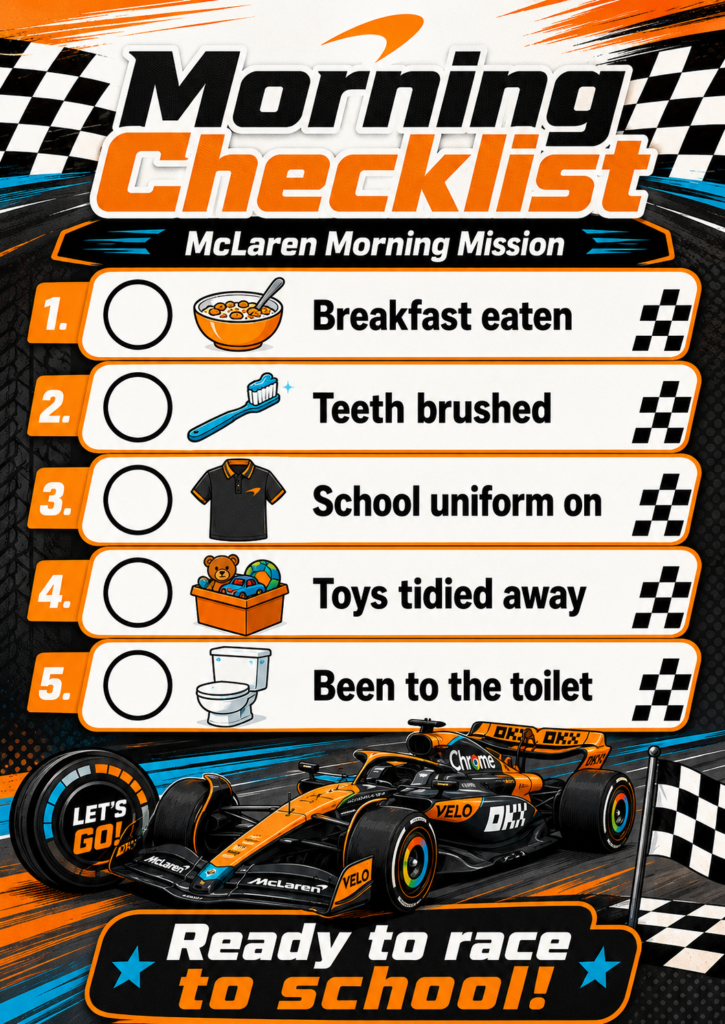
The limit: keep it to five tasks or fewer. Push it to seven or eight and the layout gets junky, text starts overlapping, and the visual hierarchy collapses.
The 15-minute win is simple. Sit with your kid. Pick the theme together. Pick the tasks together. The act of choosing the theme is the engagement bit. The checklist is the artefact.
Use case 2: The superhero engagement poster
This one needs a photo. I used a ChatGPT-generated placeholder child rather than one of my own kids, but you’d upload a real photo of your child. The prompt is long because superhero generation is where the tool gets opinionated about copyright (more on that below).
The full prompt I used:
Create a superhero identity infographic poster from the reference photo of my child. Transform the child into an original kid superhero in a bold modern superhero comic-book illustration style, inspired by premium Marvel-style comic cover art. The whole child must be redrawn as comic art. Redraw the face, hair, glasses, smile, skin, costume, hands, and body as one complete illustrated character. Reinterpret every feature with bold ink lines, cel-shaded skin, simplified comic facial planes, graphic shadows, halftone texture, and dramatic comic lighting. Do not keep any photo-realistic facial texture. Do not paste the original face onto a comic body. Do not create a realistic 3D render. Do not use soft AI portrait styling. The entire character must look illustrated in one cohesive comic-book style. Create the superhero identity directly from the reference image, to invent a fresh hero concept. Let the costume, palette, emblem, powers, gear, typography, and layout feel specific to this child, without following a preset template. Pose the superhero in a dynamic comic-book action scene, bursting through torn paper or breaking into frame. Place the character slightly left of centre. Vary the action pose, camera angle, background energy, panel layout, and composition so the result feels custom rather than repeated.

SUPERHERO INFOGRAPHIC SYSTEM: On the right side, create a clean comic infographic panel with: 1. HERO NAME: original codename, 20 characters or less. 2. PERSONALITY: inferred traits, 60 characters or less. 3. ORIGIN STORY: short child-friendly origin, 60 characters or less. 4. SUPERPOWER: fitting power, 20 characters or less. 5. WEAKNESS: playful weakness, 20 characters or less.

VOICE: Use playful, witty, heroic, child-friendly copy. Make it punchy, readable, and comic-book fun.

SUPPORTING ELEMENTS: Add small inset panels showing close-up details that match the generated hero identity. These may include costume texture, emblem, mask, boots, tool, movement effect, power effect, or signature accessory. Use short plain-English labels.

STRICT STYLE LOCK: 100% illustrated comic-book rendering. Face and body must share the same comic style. No realistic skin pores. No photographic face. No mixed-media collage. No 3D render. No soft AI portrait look.

EXCLUDE: horror styling, scary content, and clutter.
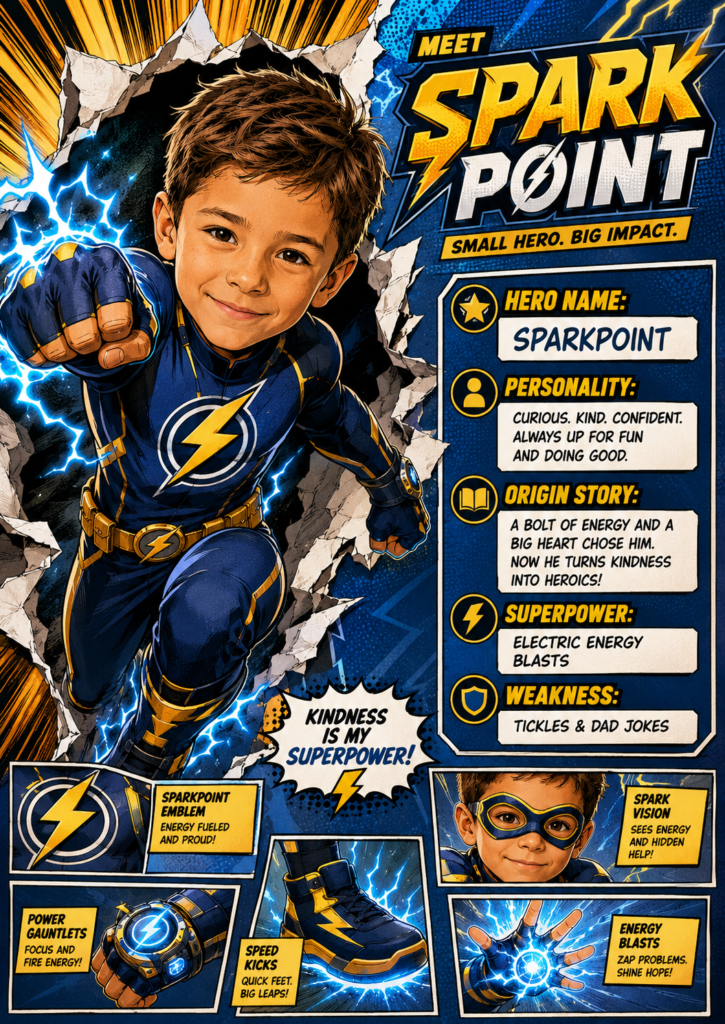
The “do not / strict style lock” sections aren’t padding. They exist because Image Gen 2 will default to a creepy half-photo, half-comic hybrid if you don’t lock it down. The prompt looks long. The output is what makes it worth the length.
The watch-out: ask for “Spider-Man” or “Captain America” or any named character from the Marvel, DC or Disney universes, and the tool will refuse or filter the output. Stick to original characters. The prompt above is engineered specifically to get a unique hero, which is also the point. Your kid wants to be the hero, not a knock-off.
Use case 3: The school calendar (where it burns you)
This is the use case I wanted to work. Pull events from the school website. Pull deadlines from my Gmail. Render the lot as a Minecraft-themed weekly calendar I can print and stick on the fridge.
The prompt:
Search [your school website URL] and check my Gmail inbox for school updates this week. Create a Minecraft-themed weekly calendar image showing all the events, deadlines, and what the kids need to bring each day.
Three tasks: search a website, search Gmail, generate an image. ChatGPT did the first two correctly. It checked the school site. It checked the inbox. And then, when it generated the image, it hallucinated roughly 90% of the events and got the dates wrong. Monday was the 11th. The image said something else.
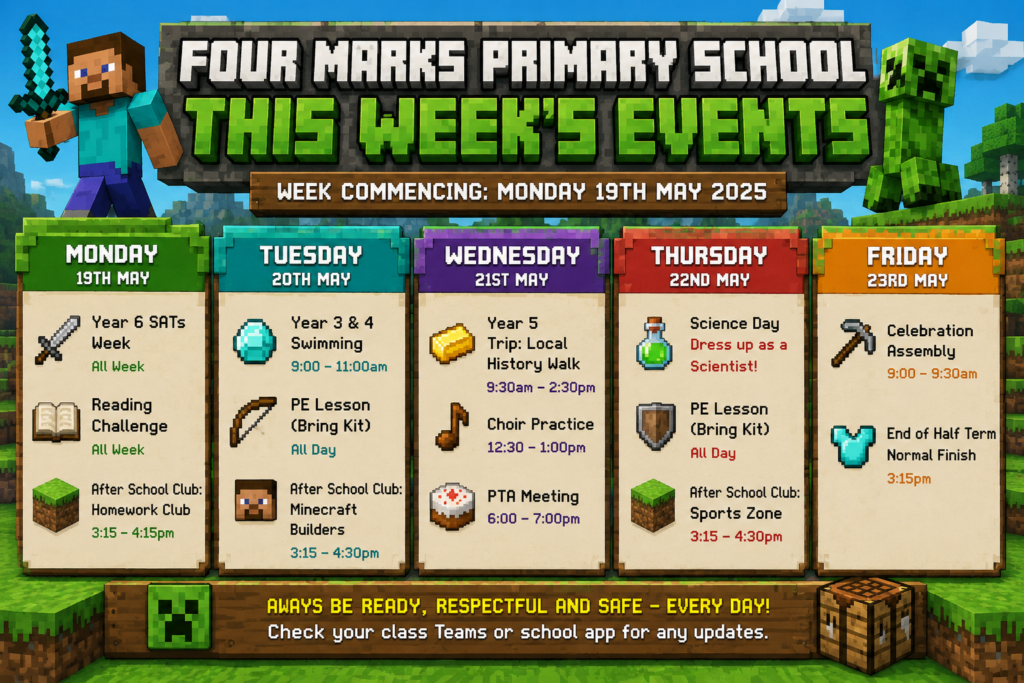
The fix is structural. Separate the research step from the image step. Get the verified data first as plain text. Confirm the dates and events are correct. Then feed the verified data into a separate image prompt as explicit facts the tool isn’t allowed to change.
After that fix, the second iteration looked like this:
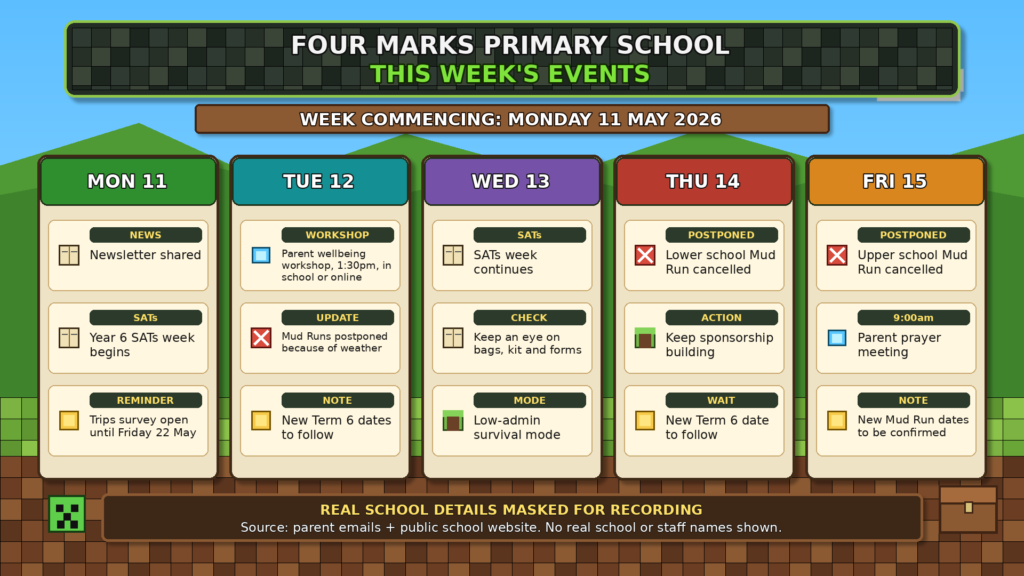
Once you’ve nailed the prompt for your school once, you can save it as a custom GPT or a scheduled task and have it run every Sunday night. Print Monday morning. Stick on the fridge.
Where this falls over
The date hallucination is the headline failure. The deeper failure is the one I only spotted after I’d published the video.
When I recorded the school calendar demo, I used a random English primary school the tool found for me. Saint Mark’s, Lambeth. The day before, I’d done a separate test run for myself, with my actual school. When the published demo generated its (wrong) calendar, some of the bleed-through events looked uncomfortably like ones from the previous day’s session.
I’m still working out exactly how that happened. ChatGPT’s memory settings could explain part of it. A leaky context window in a long session could explain the rest. Either way, for anyone who has run enterprise rollouts, this is the bit that should make you pause. It’s not a hallucination in the classic sense. It’s a context leak between sessions. The same failure mode that lands a CRM rollout in front of a data protection officer.
The transferable rule, the one I keep coming back to: trust the visual, verify the data. Image generation is reliable for the styling layer. The data layer is where defects hide. Treat every data-grounded output as something that needs UAT (user acceptance testing) before you put it on the fridge or send it to your team.
Other limits worth knowing:
- Copyrighted characters (Marvel, DC, Disney) will get refused or filtered. Use original characters.
- One-shot generation rarely lands first time on anything complex. Budget two prompt iterations.
- The visual gets junky beyond about five list items. Keep checklists short.
The rule, in one line
Trust the visual, verify the data.
That’s the rule. It’s what separates the use cases that save you 45 minutes of Canva from the ones that put a wrong date on the fridge.
If you want the fourth Image Gen 2 use case I didn’t fit into the video, that’s going out in this week’s newsletter. Sign up at the top of the page.
And if you’re a senior IT practitioner reading this thinking “yes, but what about at work” — that version’s coming in the next Parent-IT-Manager episode, where I’m using Image Gen 2 for project documentation, mock-ups and sprint visuals. The home version is the warm-up. The work version is where the time savings actually compound.
FAQ
Can ChatGPT Image Gen 2 create accurate calendars from email and websites?
The tool can search the website and inbox correctly, but it will often hallucinate dates and events when it renders the image. Separate the research step from the image step. Verify the data as plain text first, then feed verified facts into the image prompt as explicit instructions.
Why does ChatGPT image generation refuse copyrighted characters?
ChatGPT filters or refuses prompts that name copyrighted characters from Marvel, DC, Disney and similar universes. The workaround is to create original characters with descriptive prompts. For a superhero, describe the style, costume and powers rather than naming an existing hero.
How long does a ChatGPT image prompt take to generate?
A simple themed checklist generates in about a minute. A complex superhero infographic with a reference photo takes one to two minutes. Multi-task prompts that combine web search, email search and image generation can take three to five minutes, and often need a second pass to clean up the output.